
Create hand-drawn presentations without drawing every element
Turn strategies, processes and workshop ideas into presentations with a distinctive hand-drawn visual language.
Use a ready-made Drawify asset in Google Slides, or compose a complete multi-element visual in the Drawify editor and export it for your presentation.
From reading to creating
Turn a paragraph about progress into a process slide
Before: “We planned, researched, designed and built the help hub. Testing showed confusing labels, so we updated them.” Show the sequence and the feedback loop instead of presenting one dense paragraph.

Worked example: a clearer help hub
- Plan → Research
- Define the help-hub goal; collect the questions people ask.
- Design → Build
- Group the answers; create the first version.
- Test → Update
- Ask someone to find an answer; revise confusing labels.
- Retrospective → Celebrate
- Record what improved and recognise the team’s work.
Edit the diagram in Drawify, export it as an image and insert that image into Google Slides. For individual illustrations inside Slides, use the Drawify add-on. An exported image is not a live-synchronised, editable Drawify project.
Build this process visualPreview the template, then choose Customise to edit it. Sign-in and your plan’s access rules apply.
What is a hand-drawn presentation?
Drawify helps you combine artist-created illustrations, templates and text into purposeful visual stories. You choose the message and structure; Drawify provides visual material and composition tools that help you communicate them.
A hand-drawn presentation uses illustrated people, objects, actions and visual metaphors to support its message.
The drawings may look informal, but the presentation still needs a clear structure, readable text and a specific purpose.
The hand-drawn style works best when it helps the audience understand something.
An illustration can make an abstract idea more concrete, identify a role in a process, show a transition or give several slides a consistent visual thread.
It is not necessary to draw every element yourself. Drawify provides artist-created illustrations and templates that can be selected, arranged and combined into presentation visuals.
Why use a hand-drawn visual style?
Make an abstract idea easier to picture
Ideas such as change, uncertainty, collaboration, ownership and progress can be difficult to communicate with text alone.
A relevant illustration can give the audience a concrete point of reference.
Build a visual story across the presentation
Repeated characters, visual metaphors, colours or illustration styles can connect one part of a presentation to the next.
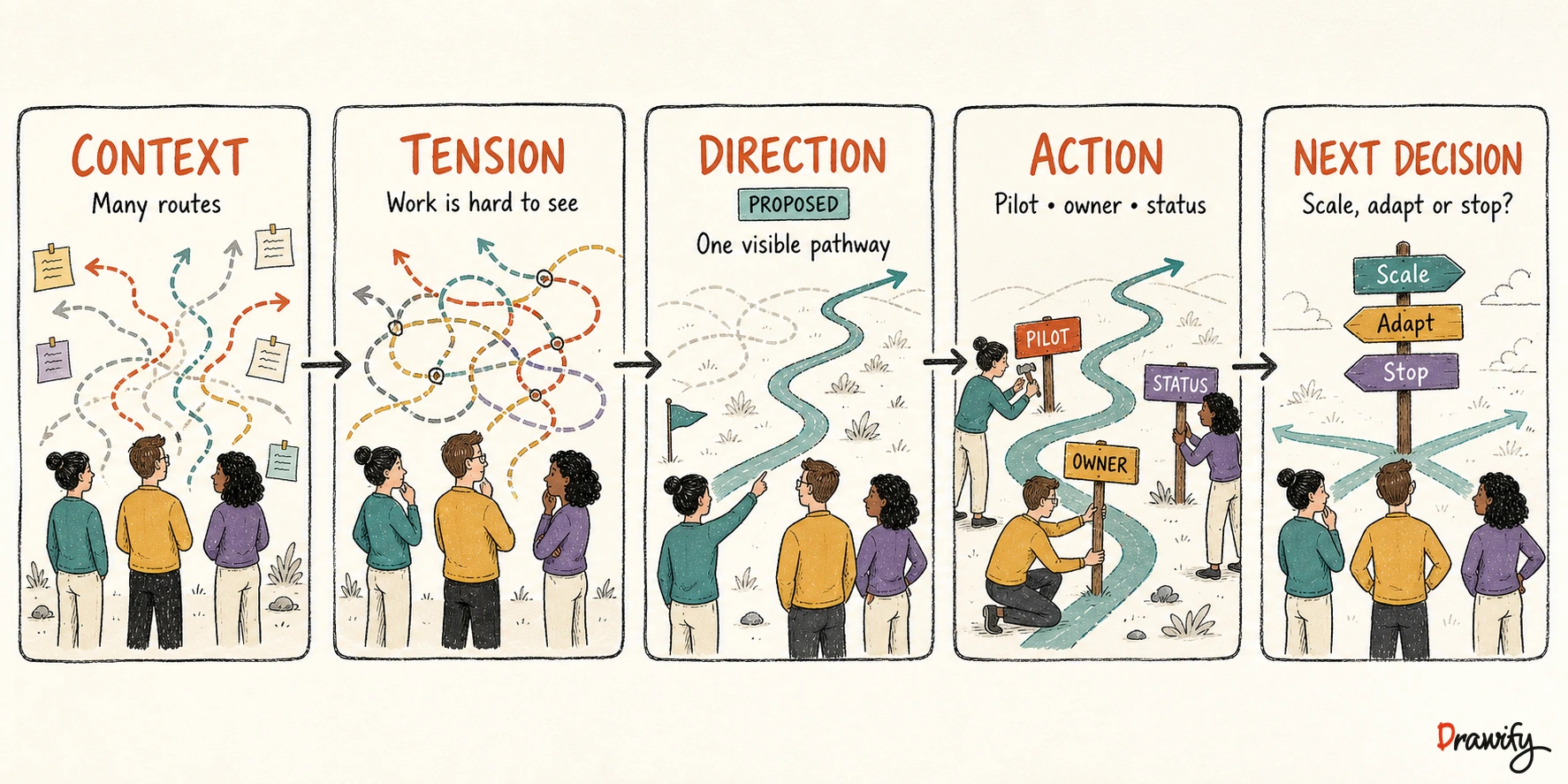
For example:
- The current reality
- The tension or obstacle
- The proposed direction
- The work required
- The next decision
Give business material a more human visual language
Illustrated people and situations can help a presentation represent customers, employees, partners and other roles without relying only on generic stock photography.
Create consistency without drawing from scratch
Using illustrations from a coherent visual library can help presentation slides feel related.
Select a restrained set of visual elements and reuse them only where they clarify the story.
How Drawify helps create hand-drawn-style presentations
Browse artist-created illustrations
Look for illustrated people, objects, actions and visual metaphors that match the message of the slide.
Start from a template
Use a Drawify template when the presentation needs a familiar visual structure such as a process, roadmap, strategy, current-state and future-state story, stakeholder view or workshop journey.
Compose a complete visual story
Use the main Drawify editor when one slide needs several illustrations, text and layout elements arranged as a single visual.
Customise the composition
Adjust the available visual and text settings so the composition supports the presentation.
Export the finished visual
Drawify supports PNG, JPEG and PDF export.
For a presentation workflow, export an appropriate format and add the resulting file to the presentation tool as a separate step.
Add ready-made assets in Google Slides
Drawify also provides a Google Slides add-on.
Use it to browse ready-made Drawify illustrations, icons, graphics and other visual assets while working in Google Slides, then add a selected asset to the presentation.
The add-on workflow and the main Drawify editor workflow are different.
Do not describe exported Drawify compositions as automatically synchronised with Google Slides.
Two practical presentation workflows
Workflow 1: add a ready-made visual in Google Slides
Use this route when the slide needs one relevant Drawify asset.
- Open the presentation in Google Slides on a computer.
- Open the Drawify add-on.
- Browse for an illustration, icon or graphic that matches the message.
- Add the selected asset to the active presentation.
- Finish the slide using Google Slides' own text, layout and collaboration features.
Workflow 2: compose a larger visual in Drawify
Use this route when the slide needs a complete visual story made from multiple elements.
- Define the message the audience should understand.
- Choose a template or relevant illustrations.
- Arrange illustrations, text and connectors in the Drawify editor.
- Review the visual hierarchy and remove unnecessary elements.
- Export the completed composition as PNG, JPEG or PDF.
- Manually add the exported file to the presentation.
How to create a hand-drawn presentation
1. Define the presentation's purpose
Write one sentence that explains what the audience should understand, decide or do after the presentation.
2. Build the story before designing the slides
Arrange the presentation into a simple narrative.
- Context
- Current challenge
- Evidence
- Implication
- Proposed direction
- Decision or next action
3. Give each slide one main job
A slide might introduce a problem, explain a relationship, compare options or ask for a decision.
4. Choose illustrations that carry meaning
Select visuals that represent the idea accurately.
- A handoff illustration for a transfer of responsibility.
- A crossroads for a decision.
- A bridge for a transition.
- A group of roles for a stakeholder discussion.
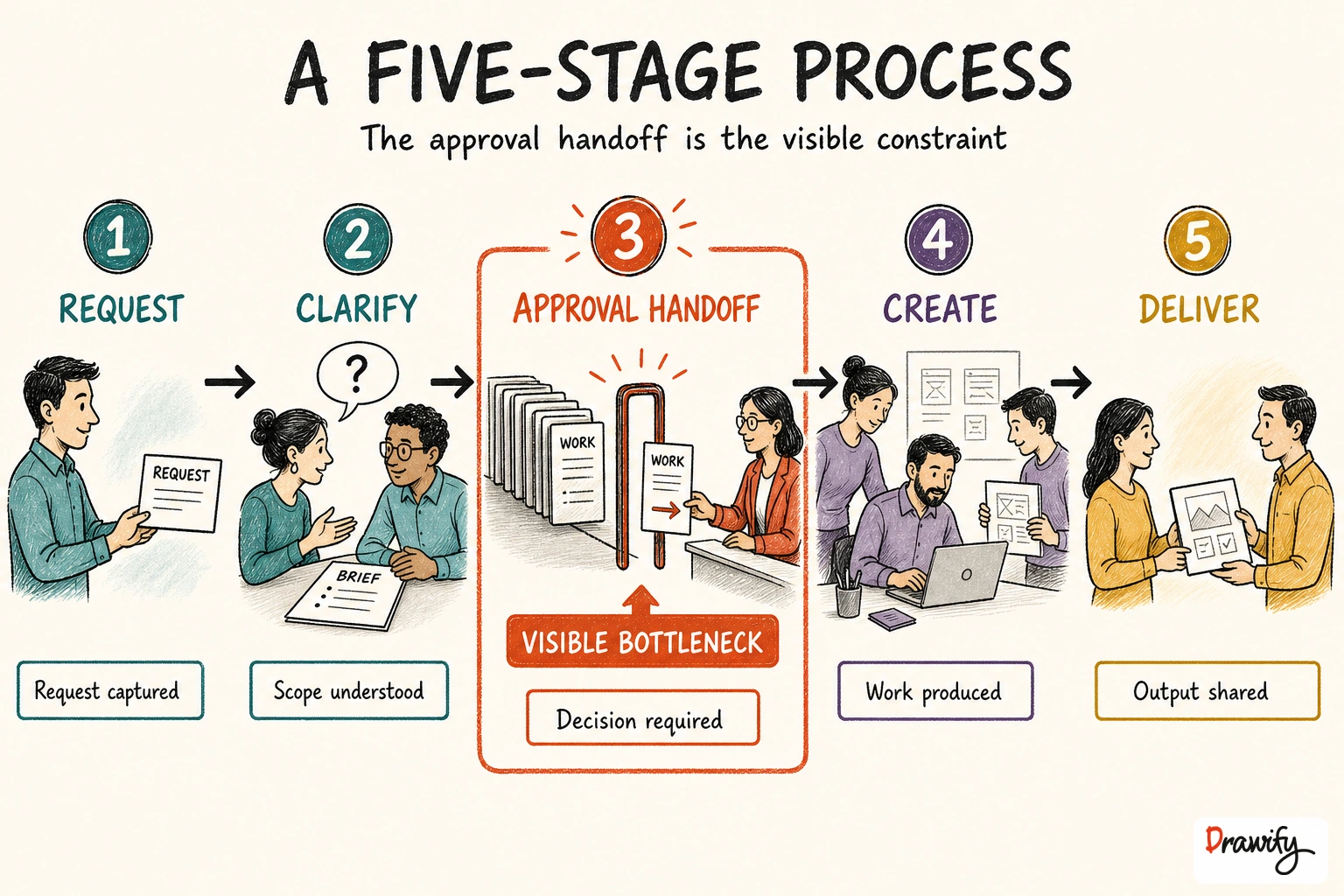
- A visible obstacle for a process bottleneck.
5. Compose the visual hierarchy
Make the title, central idea and supporting detail easy to distinguish.
6. Keep the presentation visually consistent
Use a limited visual language across the deck.
7. Review the claims and labels
Separate facts from assumptions, recommendations and intended outcomes.
Useful labels include:
- Evidence
- Assumption
- Interpretation
- Proposed
- To validate
- Agreed
- Next action
8. Export or use the Google Slides add-on
Use the Google Slides add-on for a ready-made Drawify asset.
Use the main Drawify editor for a multi-element composition, then export and add it to the presentation manually.
Hand-drawn presentation use cases
Strategy presentations
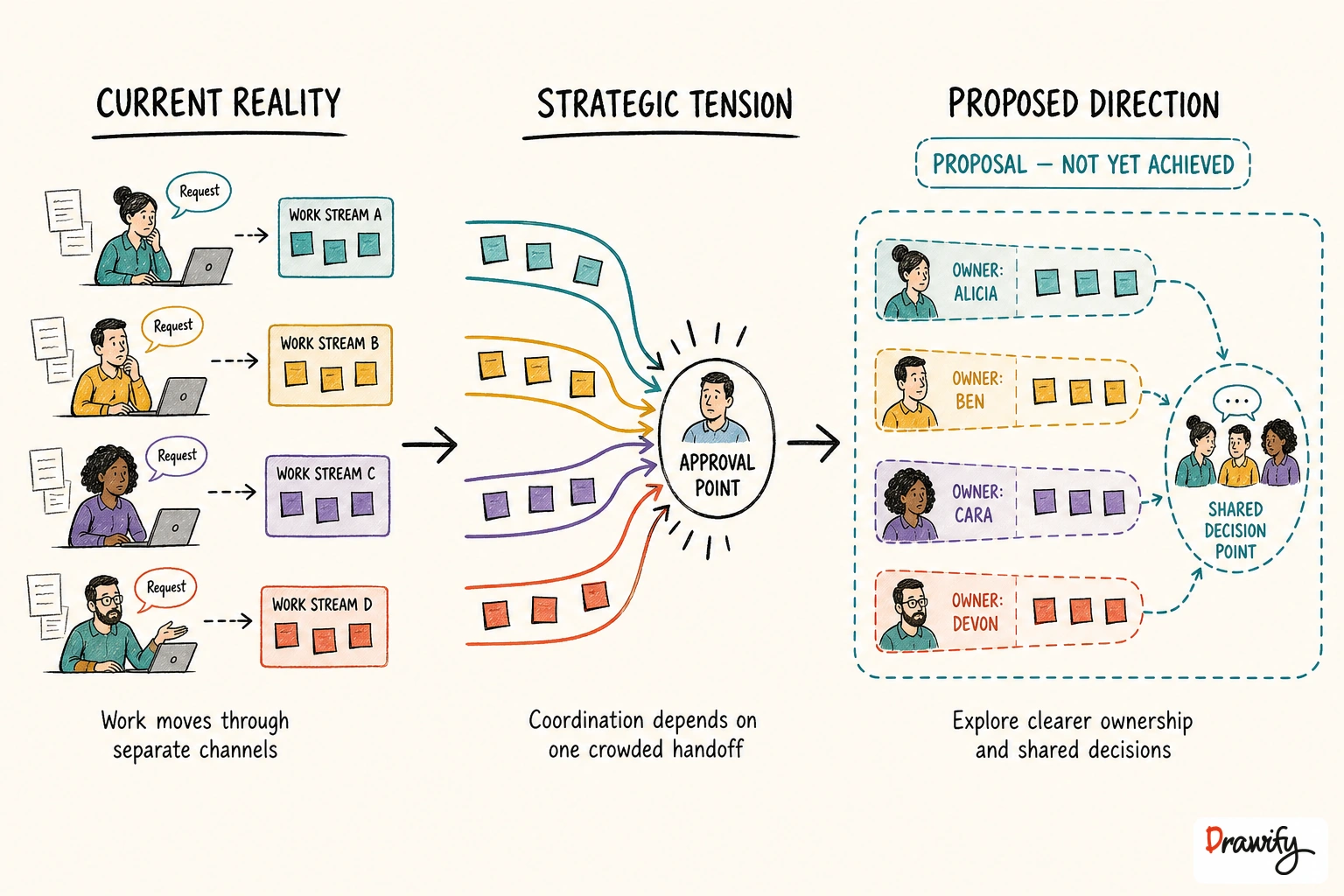
Show the path from current reality to future direction.
Process and operating-model presentations
Illustrate stages, handoffs, roles and bottlenecks.
Change and transformation presentations
Use a visual journey to distinguish the current state, transition work and intended future state.
Customer-journey presentations
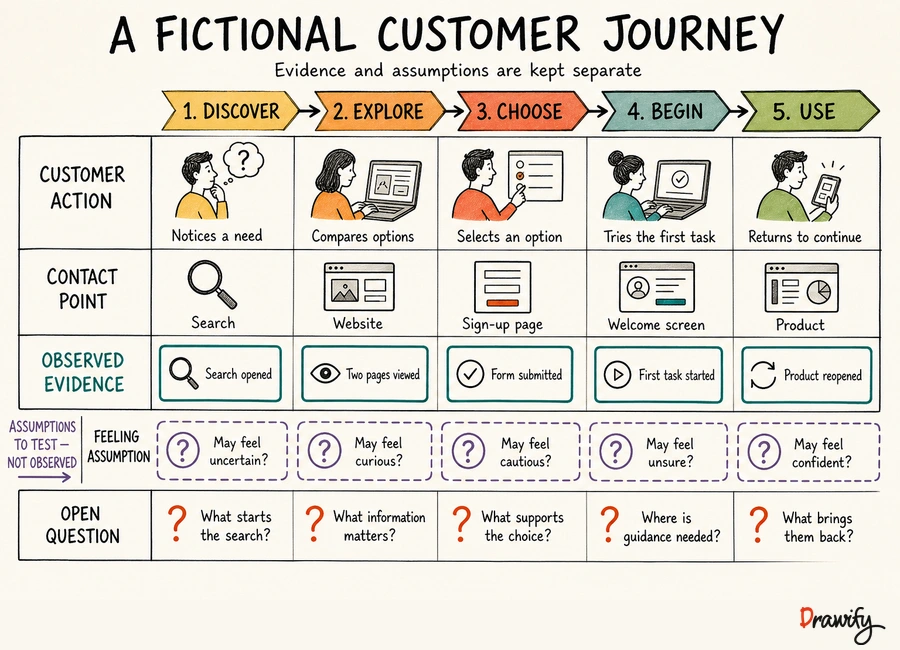
Show the customer's actions, contact points, questions and friction across a sequence.
Workshop and meeting decks
Create visual agendas, activity instructions, stakeholder maps and outcome summaries.
Explore visual storytelling for workshops
Consulting and client presentations
Turn findings, implications and recommendations into a story the client can examine.
Explore visual storytelling for consultants
Training and education presentations
Pair an illustration with a definition, example, process or question.
Sales and pitch presentations
Use a consistent visual metaphor to explain the problem, audience, solution and next step.
Project updates
Show completed work, current activity, unresolved issues and next actions as separate categories.
Make the illustrations support the message
Use one meaningful visual before several decorative ones
A single relevant illustration can clarify the slide more effectively than a collection of loosely related images.
Keep important text readable
Use concise labels and retain enough contrast and space for the presentation environment.
Explain what arrows and connections mean
An arrow could indicate sequence, responsibility, influence, information flow or change.
Label it when the meaning is not obvious.
Preserve uncertainty
Distinguish what is known, what participants reported, what the presenter inferred, what has been decided and what is still proposed.
Check the final slide in presentation view
Review the completed slide at its intended display size.
What Drawify should not be claimed to do
Drawify helps create and supply visual material for presentations.
This page does not claim that Drawify:
- Automatically writes a complete presentation.
- Independently determines the correct business story.
- Automatically analyses workshop or customer data.
- Guarantees audience attention, understanding or conversion.
- Automatically synchronises exported compositions with presentation files.
- Replaces Google Slides' own collaboration and presentation controls.
- Keeps every exported illustration component independently editable in another application.
Frequently asked questions
What is a hand-drawn presentation?
A hand-drawn presentation uses illustrated people, objects, actions and visual metaphors to support a structured message. The visual style may appear informal, but the content still needs clear evidence, hierarchy and purpose.
Do I need drawing skills to use Drawify?
No. You do not need to draw every element yourself. Drawify provides artist-created illustrations, templates and composition tools that can be used to build presentation visuals.
Can Drawify create an entire presentation automatically?
The verified Drawify capabilities support finding visual assets and composing visual stories. This page does not claim that Drawify automatically writes the content or generates a complete presentation deck.
Can I use Drawify in Google Slides?
Yes. Drawify provides a Google Slides add-on for browsing ready-made illustrations, icons, graphics and other visual assets and adding a selected asset to a presentation.
Can I import a complete Drawify project directly into Google Slides?
The current verified workflow does not document direct project import or automatic synchronisation. Compose the complete visual in Drawify, export it in a supported format and add the exported file to Google Slides manually.
Can I use a Drawify visual in another presentation tool?
Drawify supports PNG, JPEG and PDF export. You can add an exported file to a presentation workflow that accepts the chosen format. Confirm the requirements of the presentation application you use.
What can I export from Drawify?
Drawify supports PNG, JPEG and PDF export from the main platform.
Are Drawify illustrations hand drawn?
Drawify's approved product description identifies its illustration library as artist-created and hand drawn. The platform helps users combine those illustrations with templates and text into visual stories.
Should every slide contain an illustration?
No. Use an illustration when it clarifies a role, relationship, process, transition or idea. Some slides are clearer with text, evidence or a simple diagram alone.
Can Drawify automatically animate a presentation?
This page does not claim automatic presentation animation. Use the animation controls of the presentation application where appropriate.
Does a hand-drawn style make a presentation more persuasive?
No visual style guarantees persuasion or understanding. A relevant illustration can support a well-structured message, but the evidence, explanation and audience context remain essential.
Can teams collaborate on a Google Slides presentation that contains Drawify assets?
Use Google Slides' own sharing and collaboration features for the presentation. The Drawify add-on supplies visual assets; it does not replace Google Slides' collaboration controls.
Give your next presentation a clearer visual story
Choose artist-created illustrations, compose the ideas that need more than one element and bring a consistent hand-drawn visual language to your presentation.
Get visualisation tips every week
Subscribe to the Drawify Newsletter, and feed your creativity with visualisation tips and techniques, as well as the latest Drawify workshops, news and resources.