Spinner

Add hand-drawn visuals to Google Slides with Drawify

Use the Drawify add-on to find hand-drawn illustrations, icons and graphics while you work in Google Slides. Open Drawify from your presentation, browse the available visual assets and insert the visual you need into the active deck without leaving Google Slides.

Free of charge in the Google Workspace Marketplace. Review the requested permissions before installation.
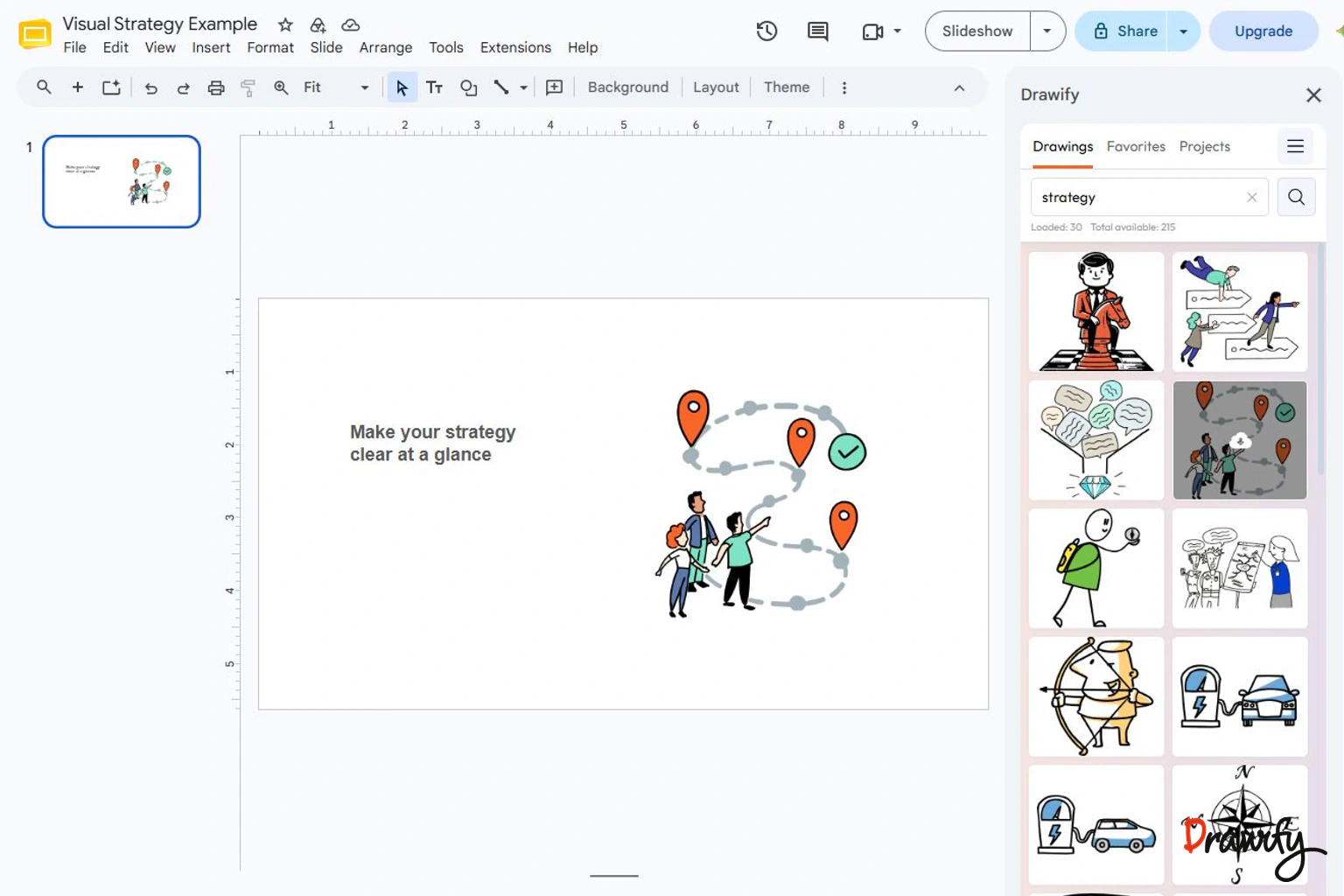
Drawify add-on open in Google Slides with hand-drawn visual assets available to insert
Browse Drawify visual assets while working in Google Slides.

What is Drawify for Google Slides?

Drawify for Google Slides is a Google Workspace add-on for adding Drawify visual assets to a presentation.

It brings a browsable collection of ready-made illustrations, icons, graphics and other creative assets into the Google Slides workflow.

Google Slides remains the place where you write, arrange, present and collaborate on the deck. Drawify supplies hand-drawn visual material that can help represent a person, object, idea or relationship on a slide.

The add-on is designed for people who want a human, hand-drawn visual style but do not want to draw every element themselves.

What can you do with Drawify in Google Slides?

Browse visual assets inside your presentation

Open the Drawify add-on from Google Slides and browse ready-made illustrations, icons, graphics and creative assets without opening a separate image-search workflow.

Add a selected visual to a slide

Choose a visual that supports the point you are making and insert it into the presentation.

Position it near the relevant heading, explanation, process step or example, then use Google Slides to complete the slide layout.

Give abstract ideas a visual cue

Hand-drawn people, objects and symbols can help identify roles, situations, changes and relationships.

The visual should support the message on the slide rather than replace the explanation.

Use Drawify visuals across different presentation types

The add-on can support business presentations, workshop decks, training material, classroom slides and other presentations where a clear visual example is useful.
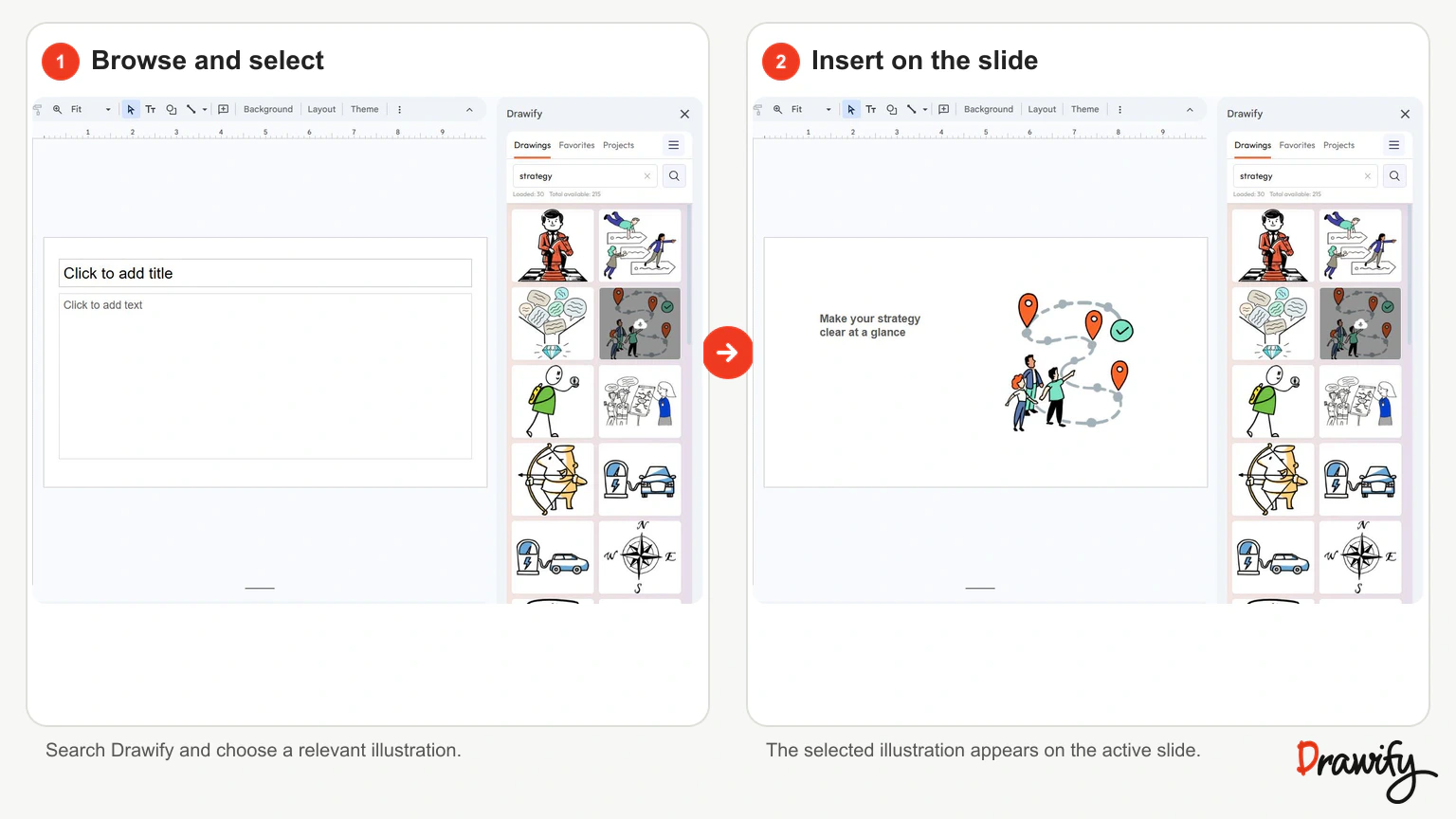
Browsing a Drawify illustration and adding it to a Google Slides presentation
Choose a relevant visual, add it to the slide and finish the layout in Google Slides.

How to use Drawify in Google Slides

1. Install the Drawify add-on

Open the Drawify listing in the Google Workspace Marketplace and select Install.

Google will ask you to continue with a Google account and review the access requested by the add-on.

You can also start from a presentation on a computer by opening Extensions, choosing Add-ons, and selecting Get add-ons.

2. Review the requested access

The current Marketplace listing says Drawify requests permission to:

  • view and manage the Google Slides presentations in which the application is installed;
  • see the primary email address for the Google account; and
  • see basic personal information associated with the account, including information made publicly available.

Read Google's installation screen and follow your organisation's add-on policy before allowing access.
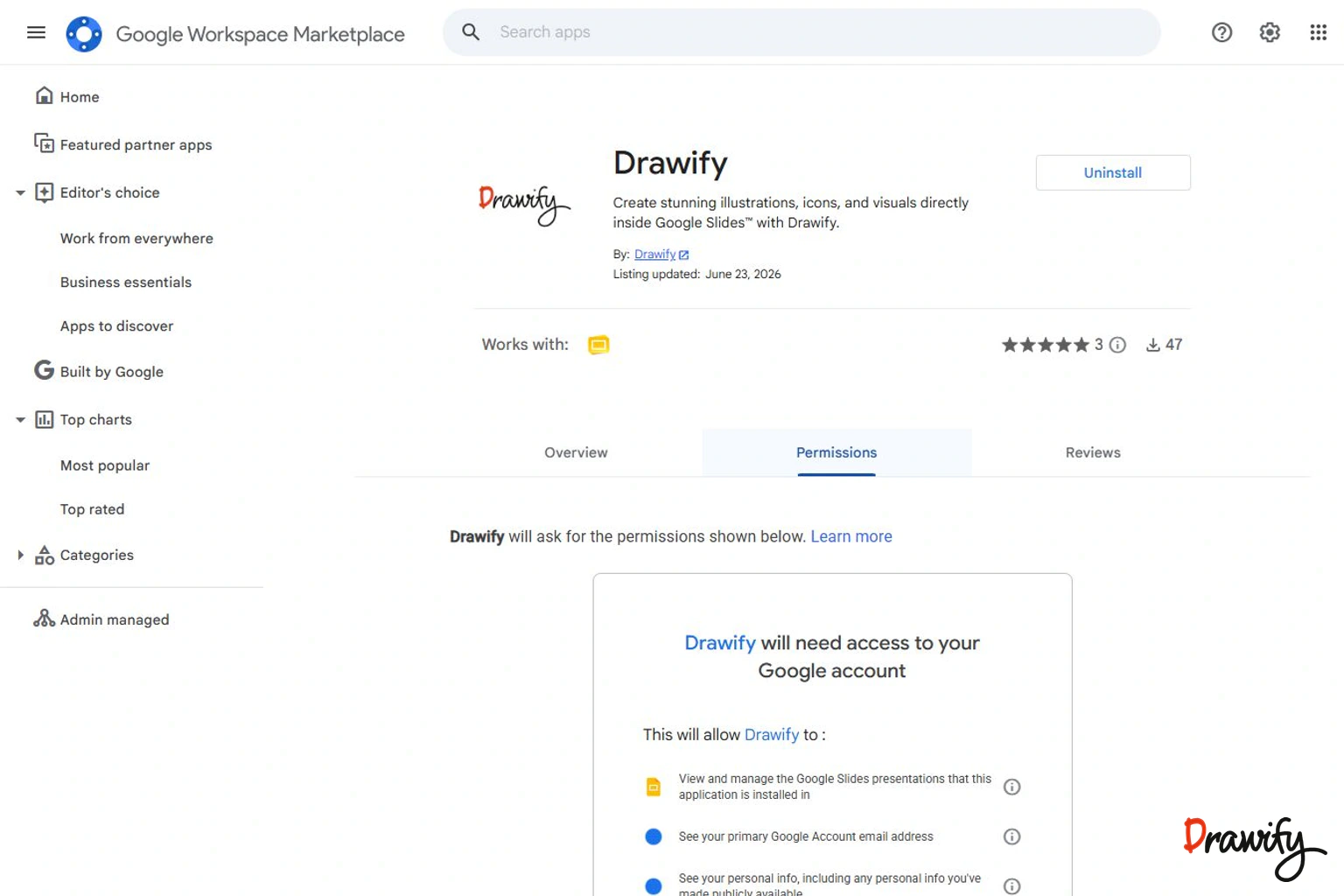
Google Workspace Marketplace permissions requested by the Drawify add-on
Review the requested Google account and presentation access before installation.

3. Open or create a Google Slides presentation

Open the presentation you want to work on.

If Drawify does not appear immediately after installation, refresh the presentation.

4. Open Drawify from Google Slides

Select the Drawify add-on from the Google Slides side panel to open its visual browser within the presentation workspace.

5. Browse for a relevant visual

Look for an illustration, icon or graphic that matches the idea you need to explain.

Start with the meaning of the slide: the audience, action, obstacle, outcome or relationship you want people to notice.

6. Insert the visual into the slide

Add the selected Drawify asset to the active presentation.

Place it where it supports the reading order and keep enough space for the slide's essential text.

7. Finish the slide in Google Slides

Use Google Slides to arrange the inserted visual with your title, text, shapes and other slide elements.

Check that the visual is large enough to recognise when the deck is presented, not only while you are editing it.

A practical workflow for clearer slides

  1. Write the one message the slide needs to communicate.
  2. Decide what the audience should notice first.
  3. Build the basic slide structure in Google Slides.
  4. Open Drawify and find one visual that supports the message.
  5. Insert the visual and position it beside the relevant content.
  6. Remove text or decoration that repeats the same idea unnecessarily.
  7. Present the slide at full size and check that both the visual and text are easy to understand.

For broader guidance on planning the message before choosing visuals, see the visual storytelling guide .

Where Drawify visuals can help in a presentation

Strategy and transformation

Use a hand-drawn visual to distinguish a current situation, a future direction, an obstacle, an opportunity or a person affected by a change.

Keep the evidence, decisions and actions in the surrounding slide content.

Process explanations

Add a visual cue to important steps, handoffs or outcomes in a process. A visual can make stages easier to recognise, while arrows, labels and sequence remain part of the slide structure.

Workshops and meetings

Use illustrations to introduce an activity, represent participant roles or mark the result a group is working toward.

Training and education

Pair an illustration with a definition, example or question. Avoid using an image as a substitute for the explanation students or participants need.

Client and stakeholder presentations

Use a restrained hand-drawn visual to make an abstract business idea more concrete.

One relevant illustration normally communicates more clearly than several unrelated decorative images.
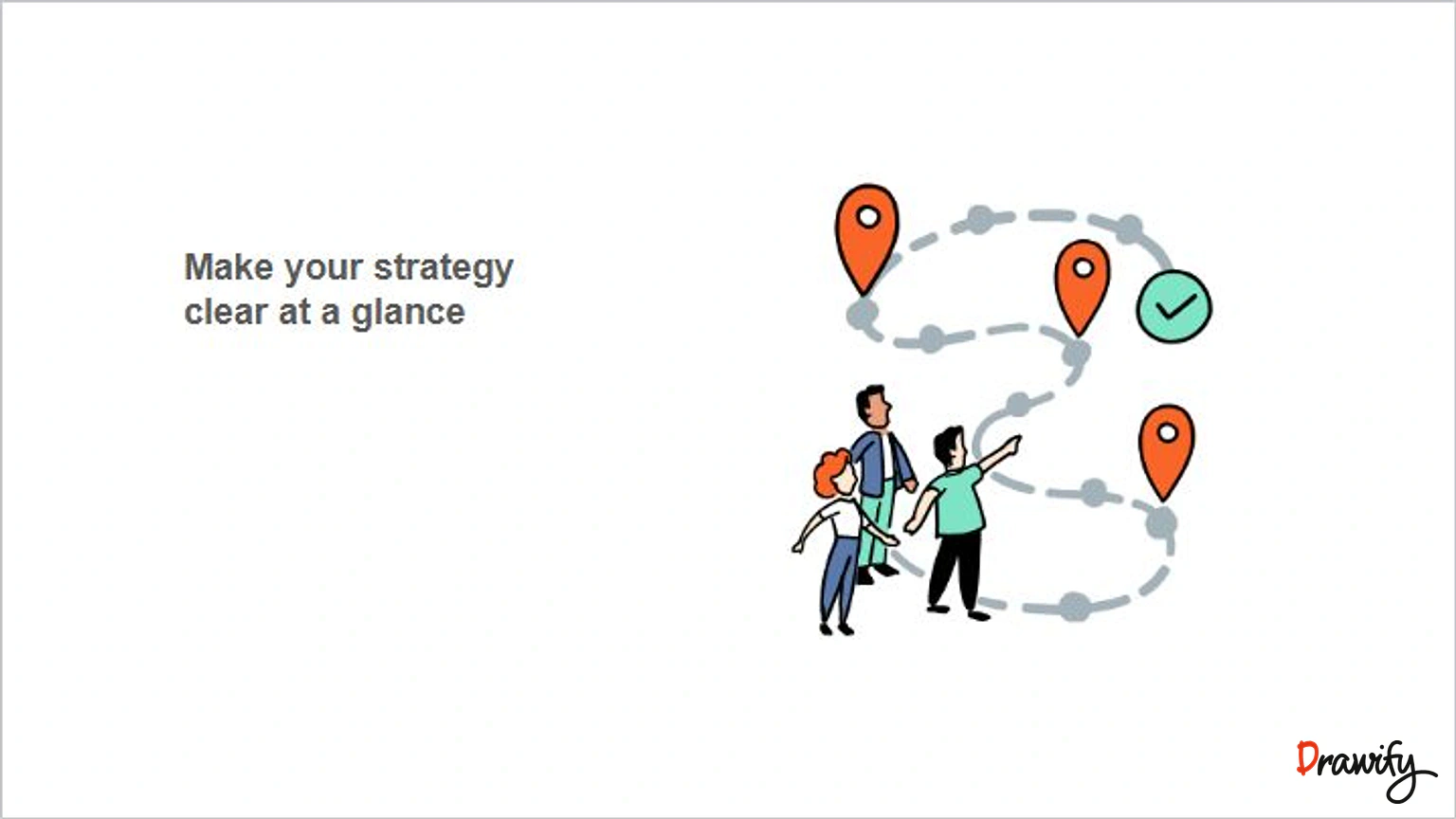
Google Slides presentation using a Drawify hand-drawn visual to explain a business idea
Use a relevant Drawify visual to support the message while Google Slides retains the presentation's wider structure, evidence and supporting content.

Using the add-on versus composing in Drawify

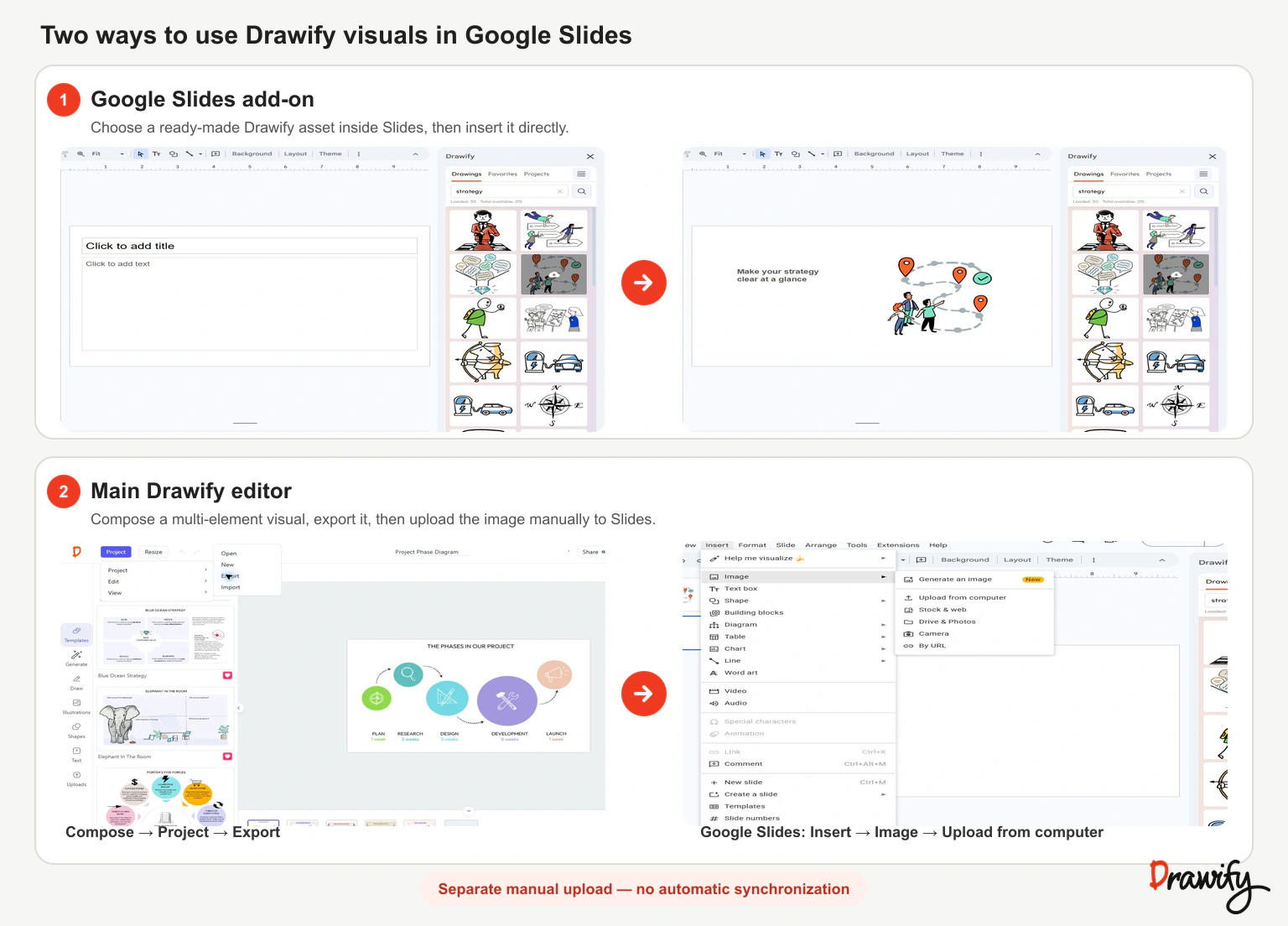
Use the Google Slides add-on when you need a ready-made illustration, icon or graphic while building a slide.

Use the main Drawify platform when you need to compose a complete visual story from several illustrations, text and layout elements.

Drawify supports exporting compositions as PNG, JPEG and PDF.

If you use this route for a Slides presentation, export an appropriate image format and add the exported file to Google Slides as a separate, manual step.

The current public product information does not establish direct Drawify-project import, project synchronisation or two-way editing between Drawify and Google Slides.

Do not describe this workflow as automatic sync.
Learn how Drawify works

Drawify add-on workflow compared with composing a complete visual in the Drawify platform
Use the add-on for ready-made assets, or compose a larger visual in Drawify and insert the exported image manually.

What Drawify for Google Slides does not claim to do

Drawify adds visual assets to a presentation. The verified public product information does not say that the add-on:

  • generates an entire presentation;
  • writes or rewrites slide content;
  • automatically designs every slide;
  • imports a Drawify project directly into Google Slides;
  • synchronises later changes between Drawify and Google Slides; or
  • replaces Google Slides' collaboration and presentation features.

This distinction helps you choose the right workflow and keeps the integration description accurate.

What do you need?

Use Google Slides in a supported computer browser and sign in to the Google account you use for presentations.

Install the Drawify add-on from the Google Workspace Marketplace and approve the access you are comfortable granting.

Work or school administrators can restrict which Marketplace apps users may install.

If installation is unavailable, contact the administrator responsible for Google Workspace apps in your organisation.

Google's current Android guidance says add-ons are not available in the Google Slides mobile app, so use the computer-based Slides workflow for this integration.

Frequently asked questions

What is Drawify for Google Slides?

It is a Google Workspace add-on that lets you browse Drawify illustrations, icons, graphics and other visual assets while working in Google Slides, then add a selected visual to your presentation.

Does Drawify create an entire Google Slides presentation?

The verified add-on description focuses on browsing and adding visual assets inside Google Slides. It does not state that Drawify generates a complete deck or writes the presentation content.

Do I have to leave Google Slides to find a Drawify visual?

No. The Marketplace listing describes browsing Drawify's ready-made visual assets from inside Google Slides. Creating a larger, multi-element composition in the main Drawify platform is a separate workflow.

Is the Drawify Google Slides add-on free?

The current Google Workspace Marketplace listing describes Drawify as Free of charge. Check the live Marketplace listing and Drawify's current plan information before relying on more detailed pricing information.

What permissions does the add-on request?

The current Marketplace listing says Drawify can view and manage the Google Slides presentations in which it is installed, see the Google account's primary email address and see basic profile information associated with that account. Always review the live Google permission screen before installation.

Can I use Drawify for Google Slides on a phone or tablet?

Google's current documentation says add-ons are not available in the Google Slides Android app. Use Google Slides on a computer for this add-on workflow. Avoid broader mobile-support assumptions unless current Drawify and Google documentation supports them.

Why can I not install the add-on with my work or school account?

A Google Workspace administrator can restrict Marketplace apps. If installation is unavailable or blocked, ask your administrator whether the Drawify add-on can be approved.

What should I do if Drawify does not appear after installation?

Refresh the Google Slides presentation and check the right-hand sidebar. Google's add-on guidance recommends refreshing the presentation when a newly installed add-on does not immediately appear.

Can I import a complete Drawify project into Google Slides?

The current public add-on listing does not document direct project import or synchronisation. For a complete composition created in Drawify, export it in a supported image format and insert the exported file into Google Slides manually.

Can several people collaborate on the presentation?

Continue to use Google Slides' own sharing and collaboration features for the deck. The Drawify add-on supplies visual assets; it does not replace Google Slides' collaboration controls.

Add a human touch to your next presentation

Find a hand-drawn visual that supports the point you need to make, then add it where you are already building the presentation.

Get visualisation tips every week

Subscribe to the Drawify Newsletter, and feed your creativity with visualisation tips and techniques, as well as the latest Drawify workshops, news and resources.