
Drawify vs Canva: choose the right visual workflow
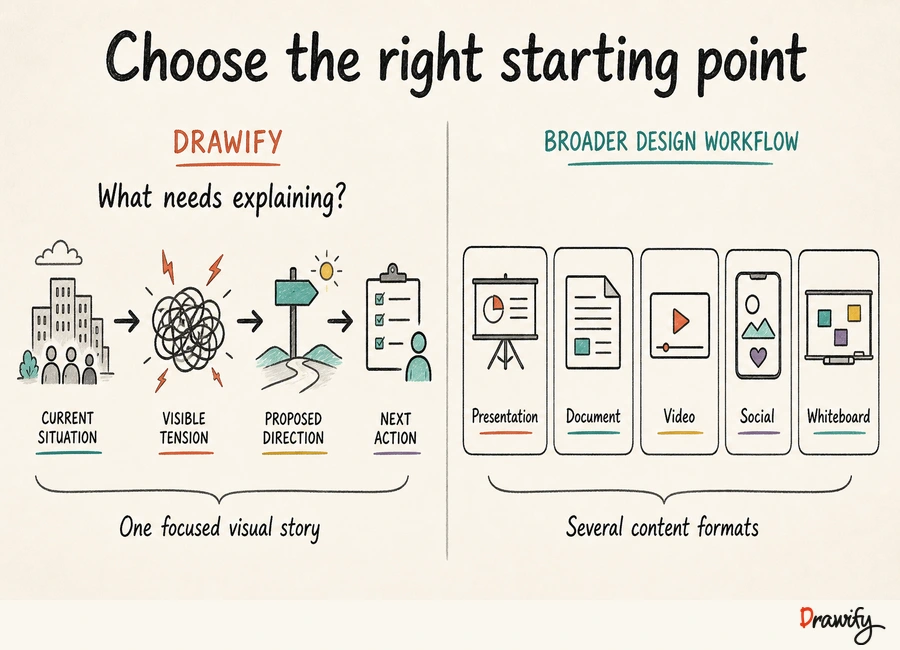
Drawify and Canva can both help you make visual content, but they approach the work from different starting points.
Drawify is a visual storytelling platform built around artist-created, hand-drawn illustrations, templates and composition tools.
Canva is a broader visual communication platform covering multiple content formats including presentations, whiteboards, documents, social content, video, websites and print.
The useful question is not which product is universally better. It is which workflow matches what you need to create.
The short answer
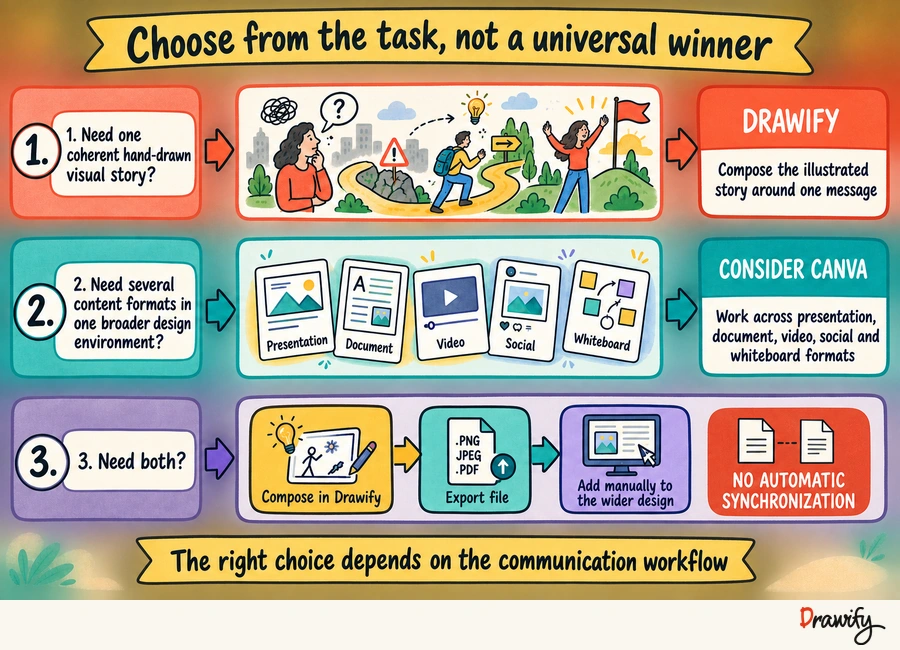
Choose Drawify when the central requirement is a hand-drawn visual story: for example, a strategy journey, stakeholder map, workshop flow, process explanation or presentation visual made from artist-created illustrations.
Consider Canva when you need a broad design environment for producing and collaborating on multiple content formats in one platform.
You can also use both.
Compose a hand-drawn visual in Drawify, export it as PNG, JPEG or PDF, and manually add the exported file to a Canva design.
This is a file-based workflow, not automatic integration or two-way synchronisation.
Drawify vs Canva at a glance
| Consideration | Drawify | Canva |
|---|---|---|
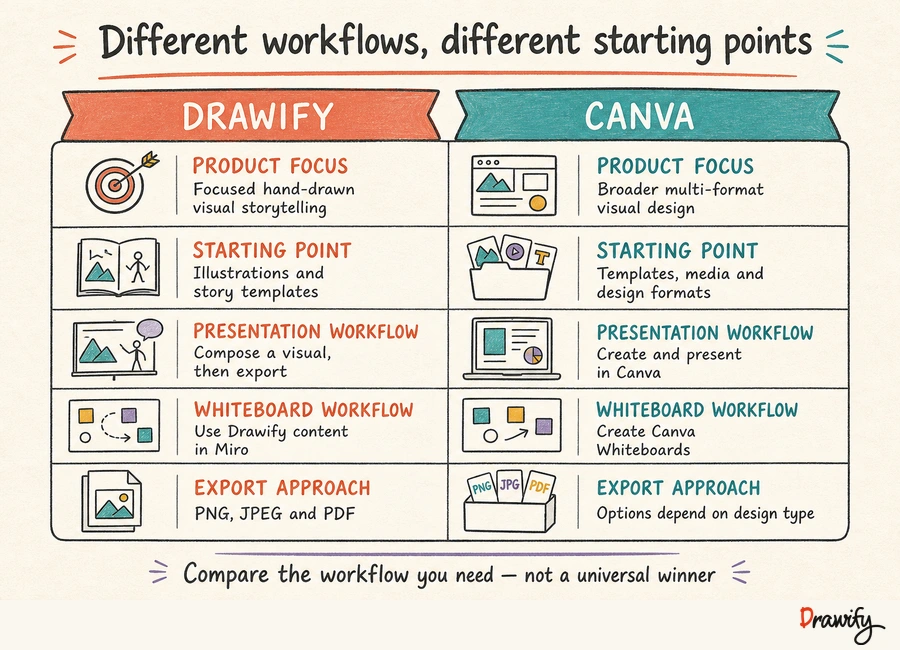
| Primary product focus | Visual storytelling with artist-created, hand-drawn illustrations, templates and composition tools | Broad visual communication across multiple content formats |
| Typical starting point | An idea, message, process, journey or relationship that needs explaining | A content or design format such as a presentation, document, whiteboard, social design, website or video |
| Visual language | Focused on artist-created hand-drawn illustrations | Broad library of media, templates, graphics and other design resources |
| Presentation workflow | Compose a complete visual in Drawify and export it, or use Drawify's Google Slides add-on for ready-made assets | Create, collaborate on, present and download presentations inside Canva |
| Whiteboard workflow | Drawify illustrations can be used through Drawify's documented Miro integration | Canva provides its own collaborative infinite-canvas Whiteboards |
| Export | PNG, JPEG and PDF | Canva documents multiple export formats depending on the design workflow |
| Best evaluated by | Whether a focused hand-drawn visual story fits the communication problem | Whether the work needs a broad multi-format design environment |
This table compares documented product orientation and workflows. It does not claim that one product is incapable of work associated with the other.
What Drawify is designed for
Drawify helps professionals combine artist-created illustrations, templates and text into visual stories for presentations, workshops and business communication.
Build a story with hand-drawn illustrations
Browse illustrated people, objects, actions and visual metaphors, then choose the elements that represent the message accurately.
Start from a visual-story structure
Use a template when a process, roadmap, stakeholder map or other visual structure provides a useful starting point.
Compose several elements into one visual
Use the Drawify editor to arrange illustrations, text and connectors as a complete composition.
Export the composition for another workflow
Drawify supports PNG, JPEG and PDF export.
What Canva is designed for
Canva currently describes its product as a Visual Suite for creating across multiple formats.
Work across several content formats
Canva's current Visual Suite includes formats such as presentations, whiteboards, documents, social media, video, websites and print.
Use templates, media and AI-assisted tools
Canva currently documents templates, photos, illustrations, graphics and other media alongside AI-assisted creation tools.
Collaborate and present inside Canva
Canva currently documents real-time collaboration for presentations as well as presentation and download workflows.
Use Canva Whiteboards for collaborative canvases
Canva Whiteboards provide an infinite canvas for brainstorming and collaborative visual work.
These are Canva capabilities, not limitations. This comparison does not claim that Canva cannot support illustrated presentations, visual storytelling or collaborative design.
The main difference: breadth versus focus
The distinction is not “simple tool versus advanced tool” or “illustrations versus no illustrations.”
Both descriptions would be misleading.
Canva provides a broad environment for multiple visual formats and production workflows.
Drawify provides a more focused visual storytelling environment centred on an artist-created, hand-drawn illustration language.
- Start with Drawify when the hand-drawn illustration style and visual-story structure are central to the message.
- Start with Canva when the work needs to span several design formats in one broader environment.
- Use both when a Drawify composition is one visual component inside a wider Canva design.
When Drawify may be the better fit for your task
You want a coherent hand-drawn visual language
Drawify's product focus centres on artist-created, hand-drawn illustrations.
You are explaining a complex business idea
Drawify works naturally with structures such as:
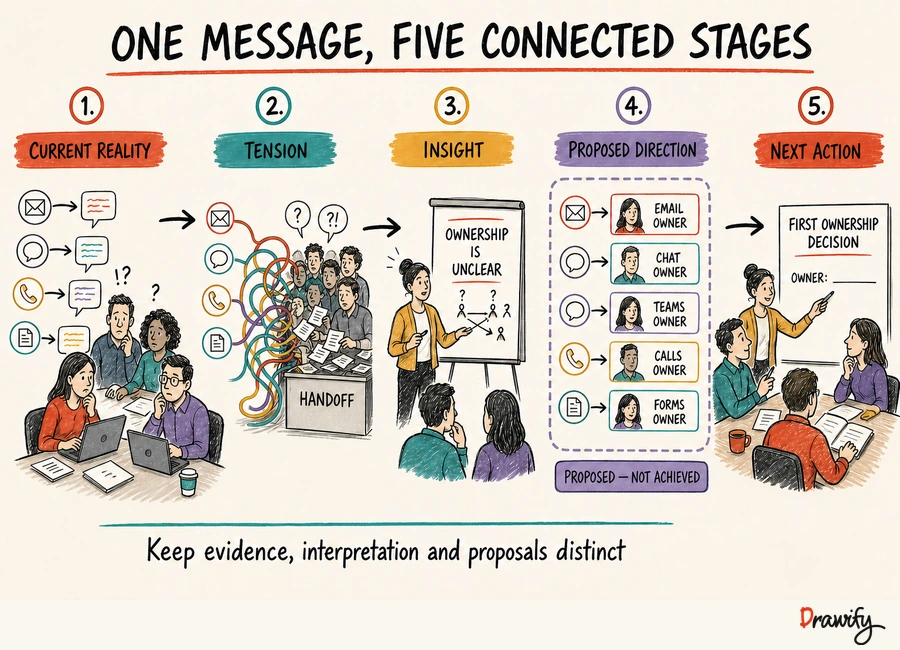
- Current reality → strategic tension → proposed direction
- Process → handoff → bottleneck
- Stakeholder relationships
- Customer journey
- Workshop journey
- Findings → implications → recommendation
You want to compose one complete visual story
When several illustrated people, objects, labels and arrows need to work as one message, Drawify provides a focused composition workflow.
You work in Google Slides or Miro
Drawify has documented workflows for Google Slides and Miro.
When Canva may be the better fit for your task
You need several design formats in one platform
Canva may be the more direct starting point when the work spans presentations, social content, video, websites, documents, whiteboards or print.
You want to create and present a deck in the same tool
Canva currently documents presentation creation, collaboration, presenter modes and supported downloads.
You need broad media options
Canva currently documents a media environment containing multiple asset types, including photos, illustrations, graphics, video and audio.
Your team relies on Canva collaboration workflows
Canva currently documents real-time collaboration, comments and task assignment.
Confirm plan-specific controls directly with Canva before making a purchasing decision.
How to use Drawify and Canva together
No direct Drawify-Canva integration is being claimed on this page.
Use a manual workflow instead:
1. Define the message
Decide what the visual needs to explain.
2. Compose the visual in Drawify
Choose relevant hand-drawn illustrations or a Drawify template and build the visual story.
3. Export the completed composition
Export the Drawify visual as PNG, JPEG or PDF.
4. Add the exported file to Canva
Add the exported file to the Canva design and position it within the wider layout.
5. Finish the wider design in Canva
Use Canva's own documented layout, collaboration, presentation or publishing features for the surrounding content.
Do not assume that the original Drawify components remain independently editable after export, and do not describe this as live synchronisation.
A practical decision checklist
- Is a hand-drawn visual style central to the message or only one possible decoration?
- Do you need one illustrated visual story or several content formats?
- Does the final presentation need to remain editable and presentable inside one platform?
- Where will the team collaborate?
- Do you need photos, video or audio in addition to illustrations?
- Is manual export and upload acceptable?
- Which current plan includes the exact features your team needs?
What this comparison does not claim
To keep the comparison fair, this page does not claim:
- that Canva cannot create visual stories;
- that Canva lacks presentations, illustrations, templates, whiteboards or collaboration;
- that Drawify replaces Canva's complete visual suite;
- that Drawify is cheaper, faster or easier;
- that one platform has a universally better feature set;
- that one product produces better business outcomes; or
- that a direct Drawify-Canva integration or live synchronisation exists.
Those claims would require separate, current evidence.
Frequently asked questions
Is Drawify an alternative to Canva?
Drawify can be an alternative for specific visual-storytelling tasks, but it is not a like-for-like replacement for every part of Canva's broader visual suite. Drawify focuses on artist-created hand-drawn illustrations, templates and visual composition.
Is Drawify better than Canva?
Neither product is universally better. Drawify may fit a task where a coherent hand-drawn visual story is central. Canva may fit a task that needs a broad design environment or several content formats. Compare the actual workflow and features you need.
Does Canva have illustrations?
Yes. Canva's current official product information describes a media library that includes illustrations and graphics. The difference discussed here is product focus rather than a claim that Canva lacks illustrated content.
What is different about Drawify's illustrations?
Drawify's approved product description specifically centres on artist-created, hand-drawn illustrations used to build visual stories. The distinction is Drawify's visual language and storytelling focus, not a claim that other platforms cannot provide illustrations.
Can I use a Drawify visual in Canva?
Yes, through a manual file workflow. Create the visual in Drawify, export it as PNG, JPEG or PDF, then add the exported file to a Canva design that accepts the format.
Does Drawify integrate directly with Canva?
No direct Drawify-Canva integration has been verified for this page. Do not assume automatic transfer, synchronization or a Canva app unless current product documentation confirms it.
Will a Drawify composition remain editable in Canva?
Treat the exported Drawify composition as a file added to Canva. Do not assume that the original Drawify illustrations, text and connectors remain separate, independently editable elements after export.
Can Canva create presentations?
Yes. Canva currently documents presentation creation, templates, collaboration, presentation modes and several supported download formats.
Can Drawify create presentation visuals?
Yes. Drawify helps users combine artist-created illustrations, templates and text into visual stories. Use the main Drawify editor for a multi-element composition or the Google Slides add-on when a slide needs a ready-made Drawify asset.
Which product is cheaper?
This comparison deliberately does not compare prices. Pricing, trials, plan names, included features and promotional terms can change. Review the current official pricing information for both products when making a purchase decision.
Which product has more illustrations or templates?
This page does not use unverified library counts. Both products can change their libraries and template collections, and counts may use different definitions. Compare the styles and content relevant to the actual project instead.
Create the visual story your message needs
Use Drawify when a focused, hand-drawn composition will help explain the idea.
Choose artist-created illustrations, adapt a template or build the story from several visual elements.
Get visualisation tips every week
Subscribe to the Drawify Newsletter, and feed your creativity with visualisation tips and techniques, as well as the latest Drawify workshops, news and resources.